[Guide] Expanding WordPress Multisite Upload Capacity to 256MB
This is a comprehensive ‘Full-Stack’ configuration guide to resolve upload limits restricted to 1MB or 2MB in WordPress (especially Docker-based Multisite) environments. It consists of 5 essential steps, from the server engine to application settings.
—
1. PHP Configuration (PHP-FPM Environment)
This is the cleanest way to override PHP settings in a Docker environment.
– Filename: .user.ini
– Path: /var/www/html/ (WordPress root directory)
upload_max_filesize = 256M
post_max_size = 256M
memory_limit = 512M
max_execution_time = 600
Security Tip: To prevent external access to your
.user.inifile via a browser, add the following code to the top of your.htaccessfile:> <Files ".user.ini"> > Require all denied > </Files> >
—
2. Forced WordPress Runtime Allocation (wp-config.php)
When server configurations are ignored, this method forcibly injects PHP settings at the time WordPress initializes.
– Filename: wp-config.php
– Placement: Insert at the very top, immediately below the <?php tag.
@ini_set( 'upload_max_size' , '256M' );
@ini_set( 'post_max_size', '256M' );
@ini_set( 'memory_limit', '512M' );
@ini_set( 'max_execution_time', '300' );
—
3. Web Server Level Configuration (.htaccess)
These settings apply when the Apache server processes requests.
– Filename: .htaccess
– Caution: Write these outside the # BEGIN WordPress and # END WordPress blocks to prevent them from being overwritten during WordPress updates.
# --- PHP Upload Limits Start ---
php_value upload_max_filesize 256M
php_value post_max_size 256M
php_value memory_limit 512M
php_value max_execution_time 600
php_value max_input_time 600
# --- PHP Upload Limits End ---
—
4. Multisite Network Settings (The Core Solution)
In a Multisite environment, the Network Admin settings take precedence over all server-level configurations.
1. Navigate to My Sites > Network Admin > Settings.
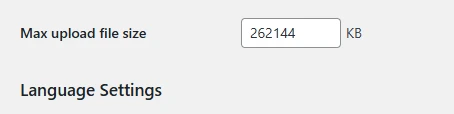
2. Locate the Max upload file size field.
3. Change the value to 262144 (KB unit, equivalent to 256MB) and save.
—
5. Nginx Reverse Proxy Configuration (Mandatory)
By default, Nginx blocks requests exceeding 1MB. If you are using Nginx or a Reverse Proxy (e.g., Synology) in front of your server, this step is mandatory.
– Configuration: Inside the http or server block.
client_max_body_size 256M;
—
✅ Final Verification
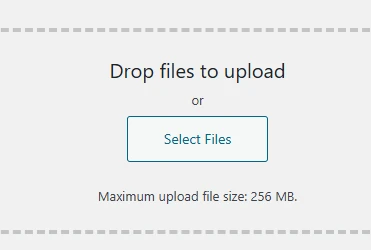
After completing all settings, restart the container (docker restart) and check the “Maximum upload file size: 256 MB” message under the Media > Add New menu.
docker restart [wordpress_container_name]
—
Author: MASTER
Date: 2026-04-10